
Product UI, sample project data.
Bots and Agents
Ask a Bot when the work needs its memory, an ongoing responsibility, or its judgment. Run an Agent for a self-contained task or for parallel work.
Each Bot runs on an Agent of its own, and that Agent belongs to the Bot. No place that offers Agents lists it: not the Agent list of a chat’s model menu, a new session, a Project’s Agent, channel routing, or the default Agent. Avibe also refuses to move a Session, a Project, a channel, or the default onto it. You pick the Bot instead. When a Bot is removed, its Agent is an ordinary Agent again.
Your main Bot
Every Avibe comes with a main Bot, called Vibey until you rename it. It is your first point of contact and can see everything on this machine: every Project, Session, Agent, and Bot. Talk things through with it and decide together; it starts the work that needs doing and follows it up. It comes first in the Bots strip, the home page’s message box talks to it, and in the desktop app the small Vibey window talks to it too. You can change its display name; the strip, its conversation, and the desktop window’s bubble all show the new name. Its avatar is always the Vibey mascot, and it cannot be removed. Its Agent is a built-in one namedmain, which no Agent picker offers; the built-in vibey Agent stays an ordinary Agent for project chats.
How a Bot gets work done
A Bot talks with you, decides with you, and keeps its memory. Everything else it hands out: whatever takes finding out, such as searching the web or reading pages or code, and whatever takes getting done goes to a Session, and the Bot follows each matter through to the end.- Where the work runs. Work that belongs to a Project goes to a Session in that Project. For a lasting Project, the main Bot is guided to keep a lead Session that coordinates the work there. A Bot’s own conversation belongs to no Project.
- Who does it. A Bot can continue a Session already on the work, message another Bot, or start a fresh Session of any Agent, including Claude Code, Codex, and OpenCode, with a model that suits the work.
- Following up. The Session reports back to the Bot. If it goes idle without writing back, Avibe sends the Bot a read receipt with its last reply, and a run that fails is reported at once. When a matter waits on a time or an event, the Bot sets a Task or a Watch. → Harness
- New Bots. When an area needs a standing relationship with you, the main Bot can suggest a Bot for it. You decide.
Find your Bots
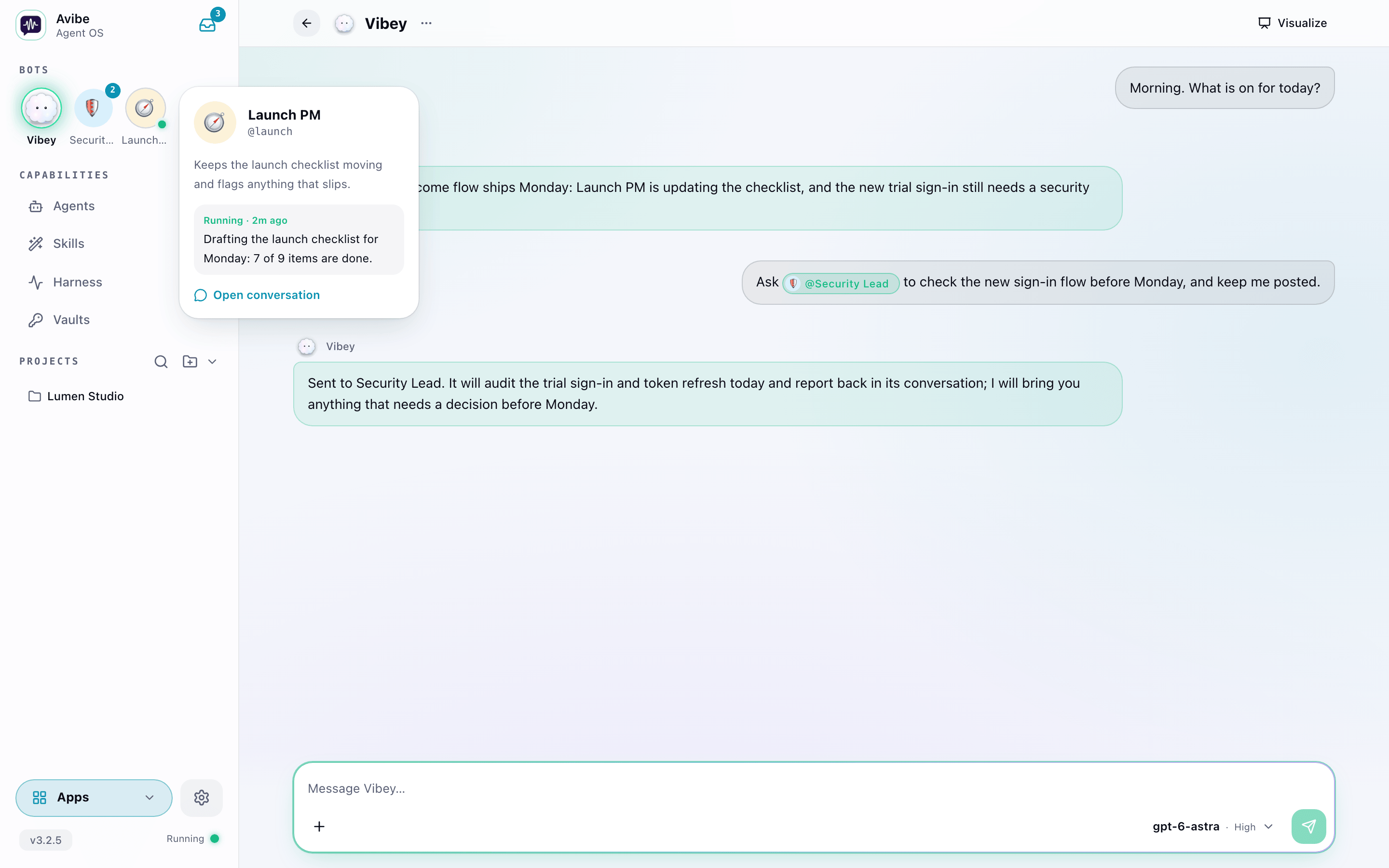
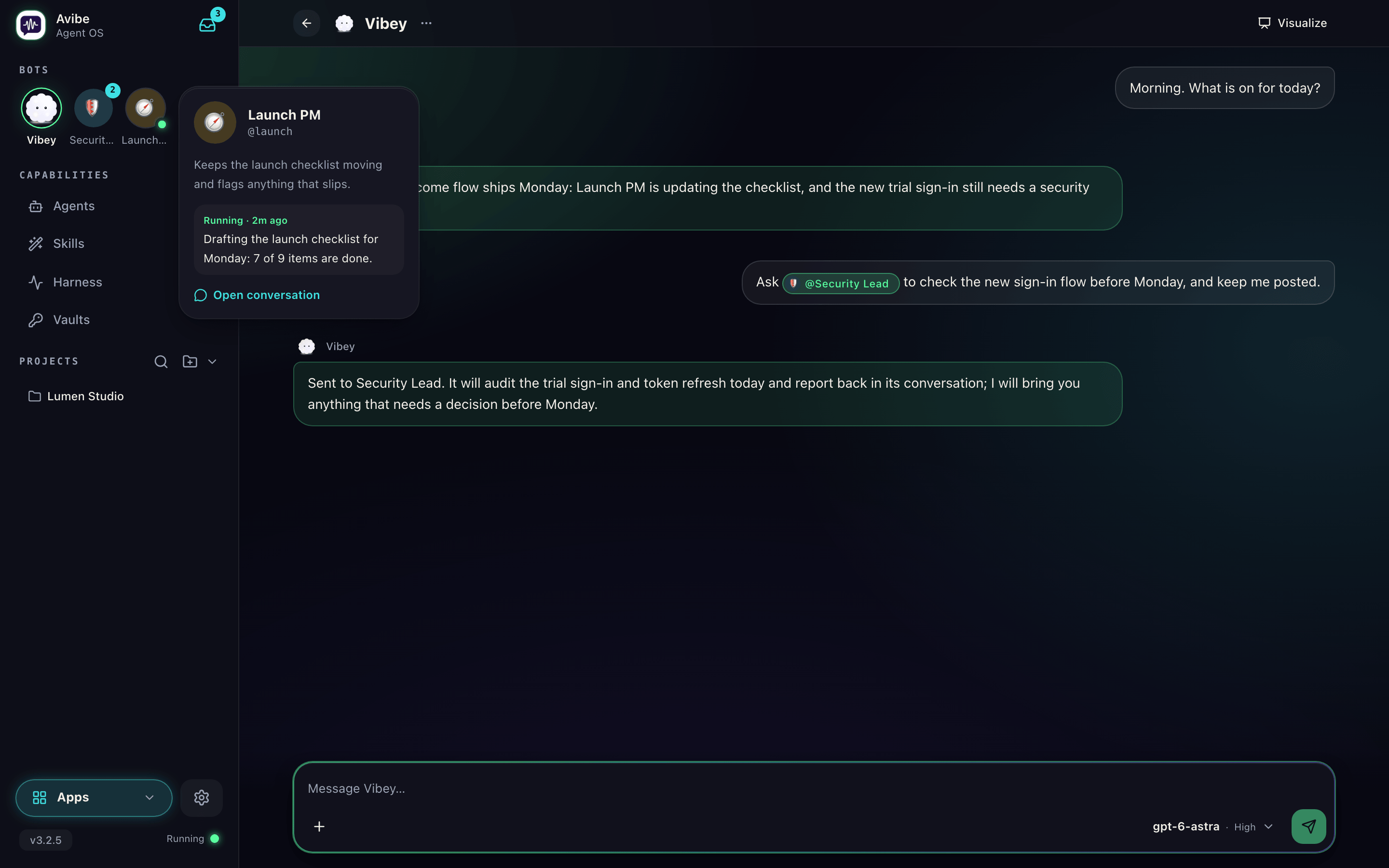
In the Workbench sidebar, the Bots strip sits under the Avibe brand. The Inbox is the icon at the right end of the brand row.- The main Bot always comes first. The others follow by when you last sent each one a message, newest first; Bots you have not messaged yet come after, in the order they were added. There is no manual order. While your pointer is on the strip or one of its menus is open, the order stays put, and it catches up afterward.
- The Bot you have open has a lit ring around its avatar, a number counts its unread replies, and a pulsing dot means it is working.
- Hover an avatar to see the Bot’s full name, its handle, its role, and its latest message or what it is running. Click the avatar or the card to open its conversation.
- When the Bots no longer fit, the strip scrolls sideways and Add stays at its right end.
- Bot conversations are in the Inbox too, marked Bot, and count toward its unread total.
Hold an avatar to talk
Hold any avatar in the strip, the main Bot’s included, to speak to that Bot without opening its conversation. It works like holding the message box: with a mouse, hold until the ring fills, release to send, and move off the avatar or press Esc to cancel; with a finger, hold, then release to send or slide up to cancel. What you said goes into that Bot’s conversation, marked as voice, and you stay where you are; the confirmation’s View opens the conversation. On a phone, hold the main Bot in the center of the tab bar the same way.Add a Bot
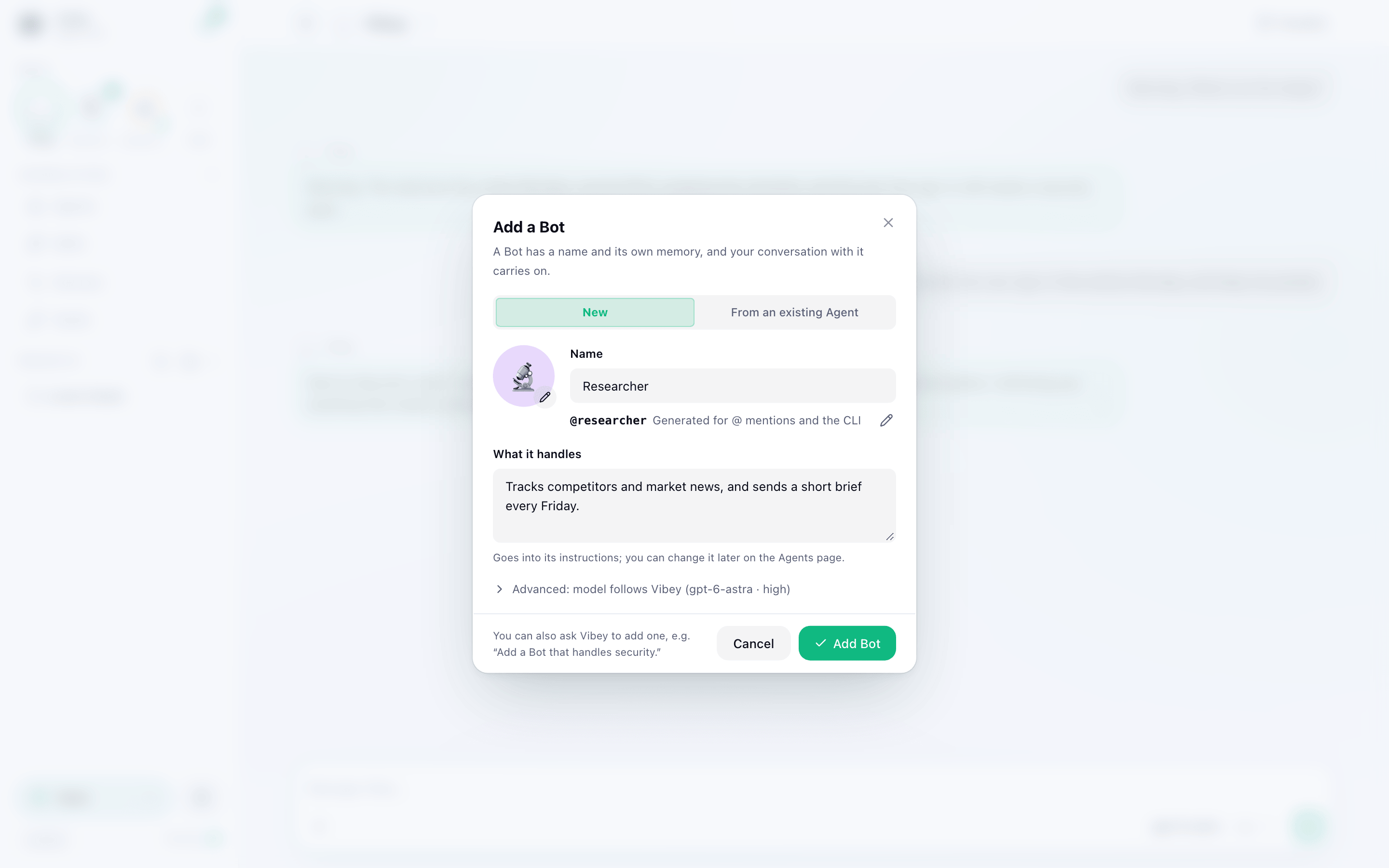
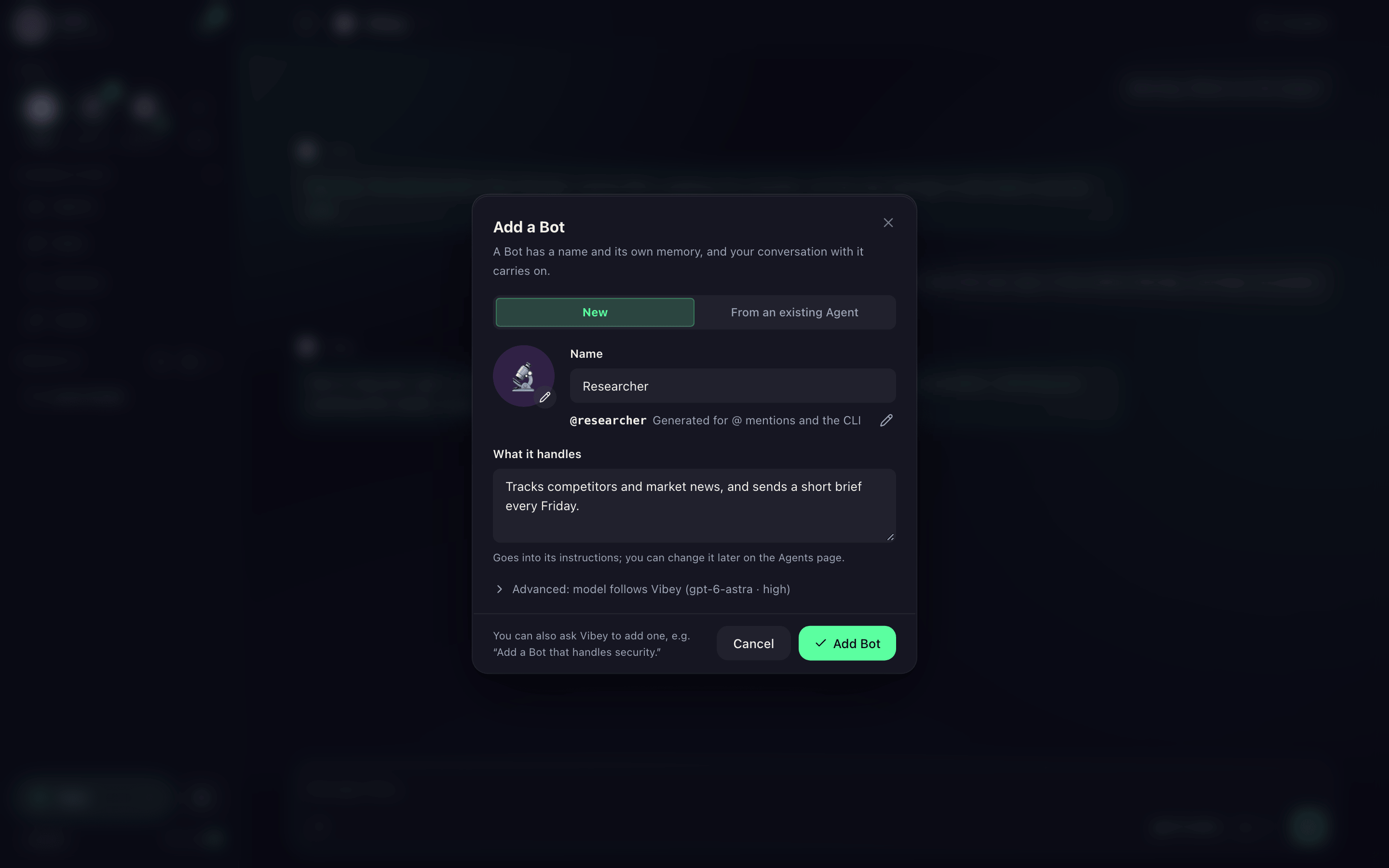
Click Add at the end of the strip, or Add a Bot in the Bots section of the Agents page. The dialog has two tabs. New creates a Bot and its Agent:- Name it, in any language.
- Pick an avatar: an emoji on a background color, or an uploaded PNG, JPG, or WebP image of up to 10 MB, cropped to a circle. The emoji grid starts with one emoji for each role people commonly give a Bot; More emoji opens every emoji, searchable in English and Chinese, with skin tones. Until you pick one, the avatar is the name’s first character on a color the name decides.
- Describe what it handles. The role goes into its instructions; change it later with Edit profile or on the Agents page.
- Avibe makes a handle once you have typed the name. A name in plain ASCII becomes the handle (
Researcherbecomesresearcher); for any other name, the main Bot’s model proposes a short English codename, and if no model answers within 5 seconds, the name is transliterated. Edit the handle before you add the Bot if you want a different one. - Under Advanced, the Bot follows the main Bot’s model and reasoning effort unless you choose others.
vibey Agent is left out, and the default Agent can be set only after you choose another default. The handle is the Agent’s name. On the Agents page, an Agent that can become a Bot offers the same as Set as Bot.
Product UI, sample project data.
main, memory, and ops are reserved. The display name can change at any time, but the handle never does once the Bot exists: it names the Bot’s conversation (ses_<handle>), its directory, its mentions, and its command-line target.
Talk to a Bot
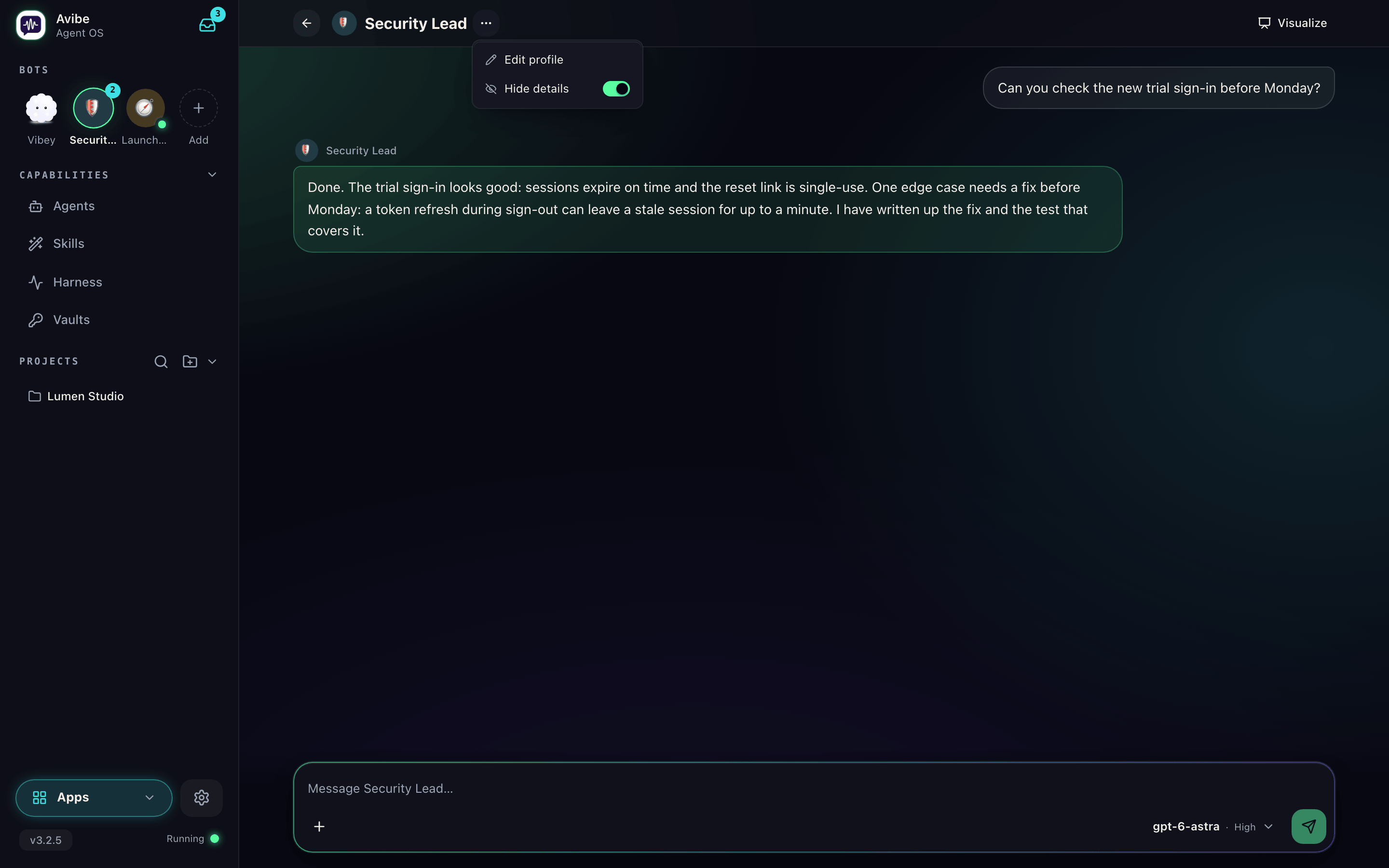
Open a Bot from the strip. The top of its conversation holds only the way back, its avatar and name, and …, which opens Edit profile and Hide details. There is no rename, archive, or fork, because the conversation never ends. A new Bot’s empty conversation is the Bot introducing itself, with the role you gave it. The model button at the lower right of the message box shows only the model and reasoning effort; its menu changes those, and speed where the model has it, never the Bot itself.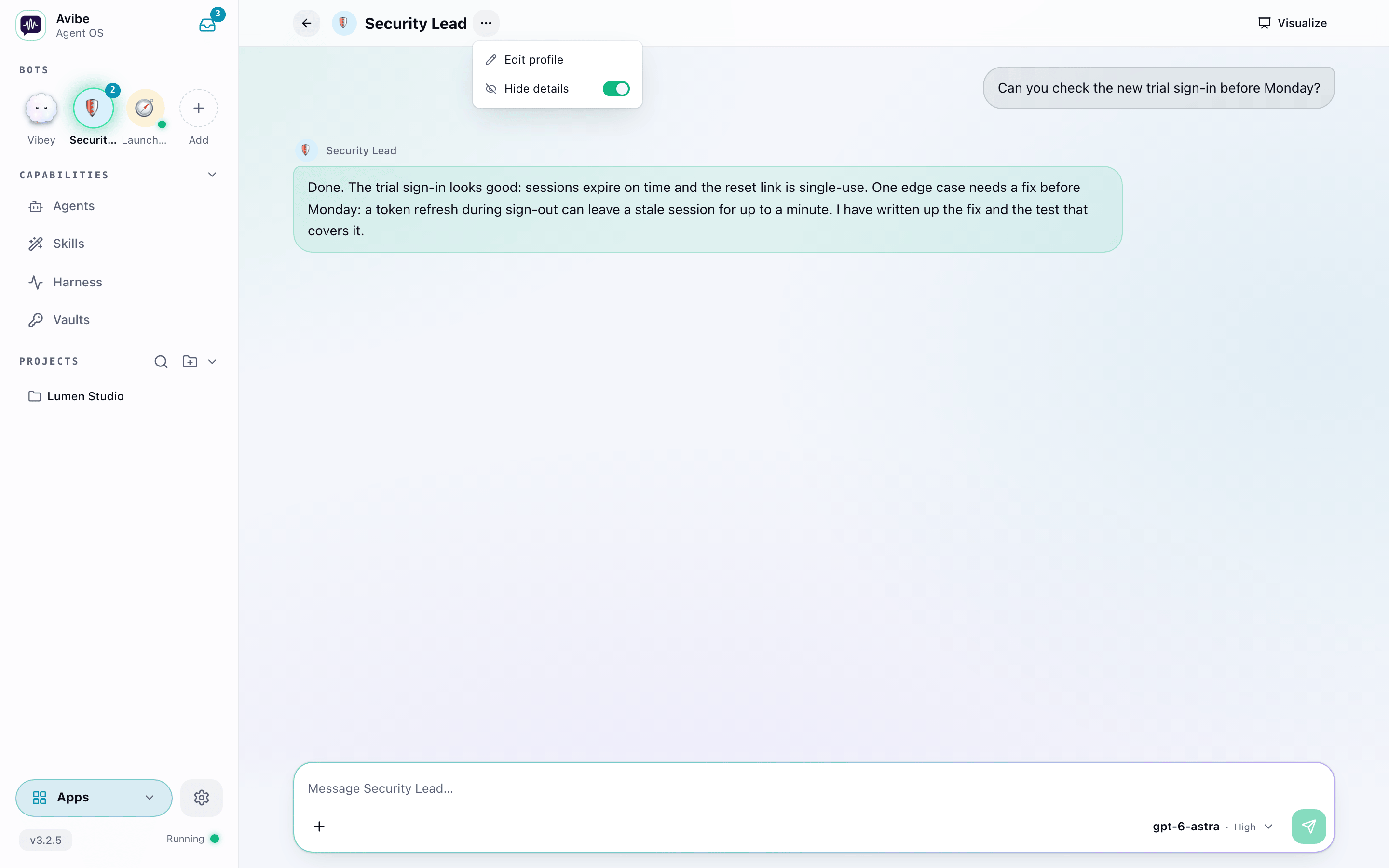
Product UI, sample project data.
Mention Bots and Agents
Type@ in a Workbench message to pick from one list: Bots first, with their avatars, then Agents. A Bot’s Agent is not among the Agents. What you pick decides the meaning:
- A Bot gets your message in its own conversation: it remembers, and it handles the message in order.
- An Agent starts a new Session: no memory of earlier runs, and it can work in parallel.
# still references a Session. Bot conversations are not listed there; @ is how you point at a Bot.
Mention chips show the current name and avatar. In the message text, a mention is stored as @<bot:handle> or @<agent:name>, so renaming a Bot never changes older messages. A mention written before Bots, @<name>, still means an Agent.
Memory
A Bot’s directory is its memory:~/.avibe/bots/<handle>/.
- It starts as an empty Git repository. The Bot creates an
AGENTS.mdthere when it has something worth keeping, and uses it as an index to its other files. - A Bot is guided to keep a folder for each matter it follows under
matters/, named by date and subject, with the goal, what it agreed with you, the Sessions on it, and where it stands, and a note for each Project it works in underprojects/. Avibe creates none of this; the Bot organizes it. - Like any Vibey Session, a Bot loads the instruction files from the filesystem root down to its directory. So its own
AGENTS.mdis in its instructions on every turn, and~/.avibe/bots/AGENTS.md, if you write one, reaches every Bot. - Avibe commits the directory before each turn, recording changes made by you or anyone else, and after it, recording the Bot’s own. History is never squashed, so you can trace or undo any change with Git.
- Who the Bot is stays in its Agent definition, which you own; the Bot cannot redefine itself by editing its memory. Keep secrets in Vaults, never in memory.
Edit and remove
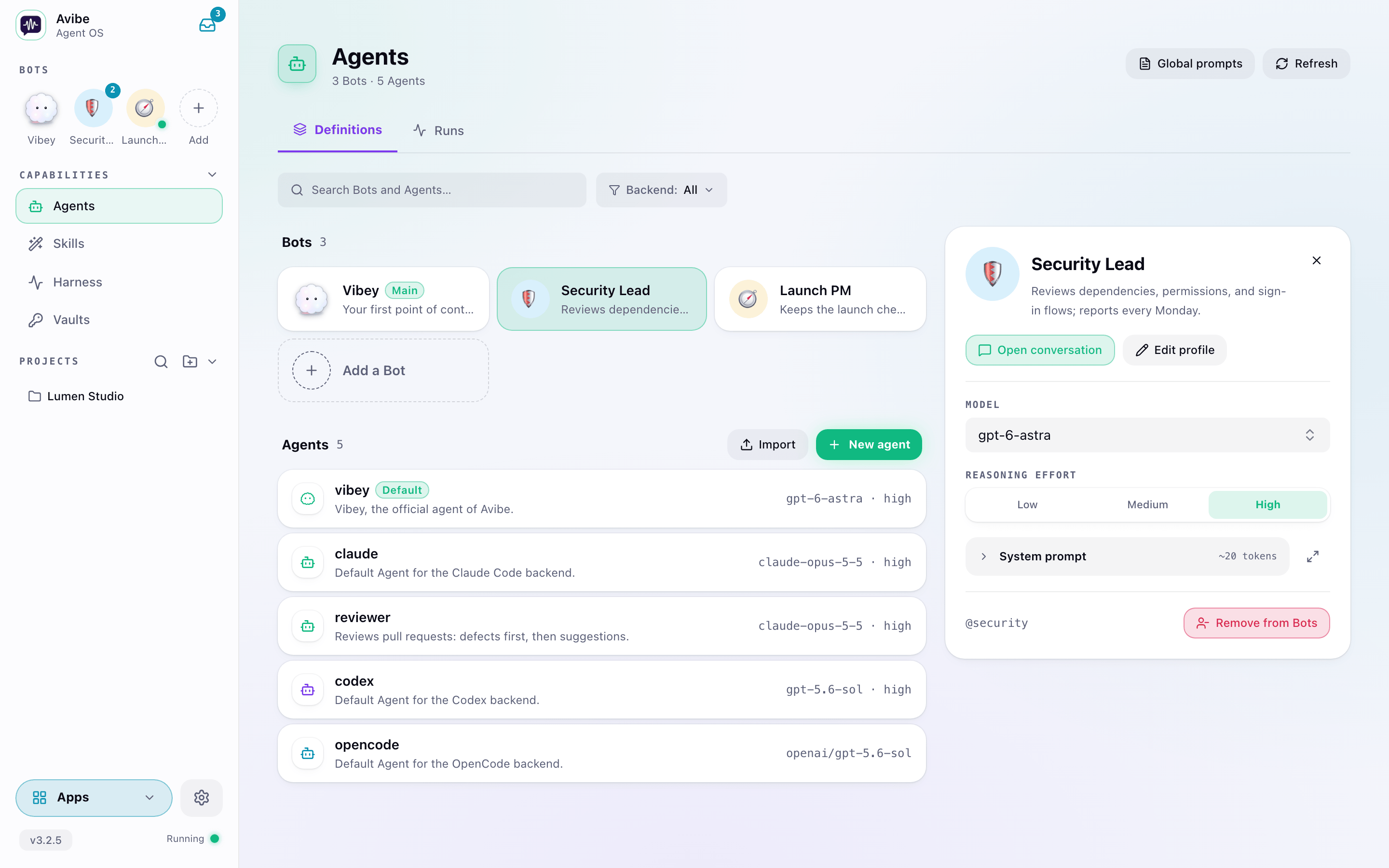
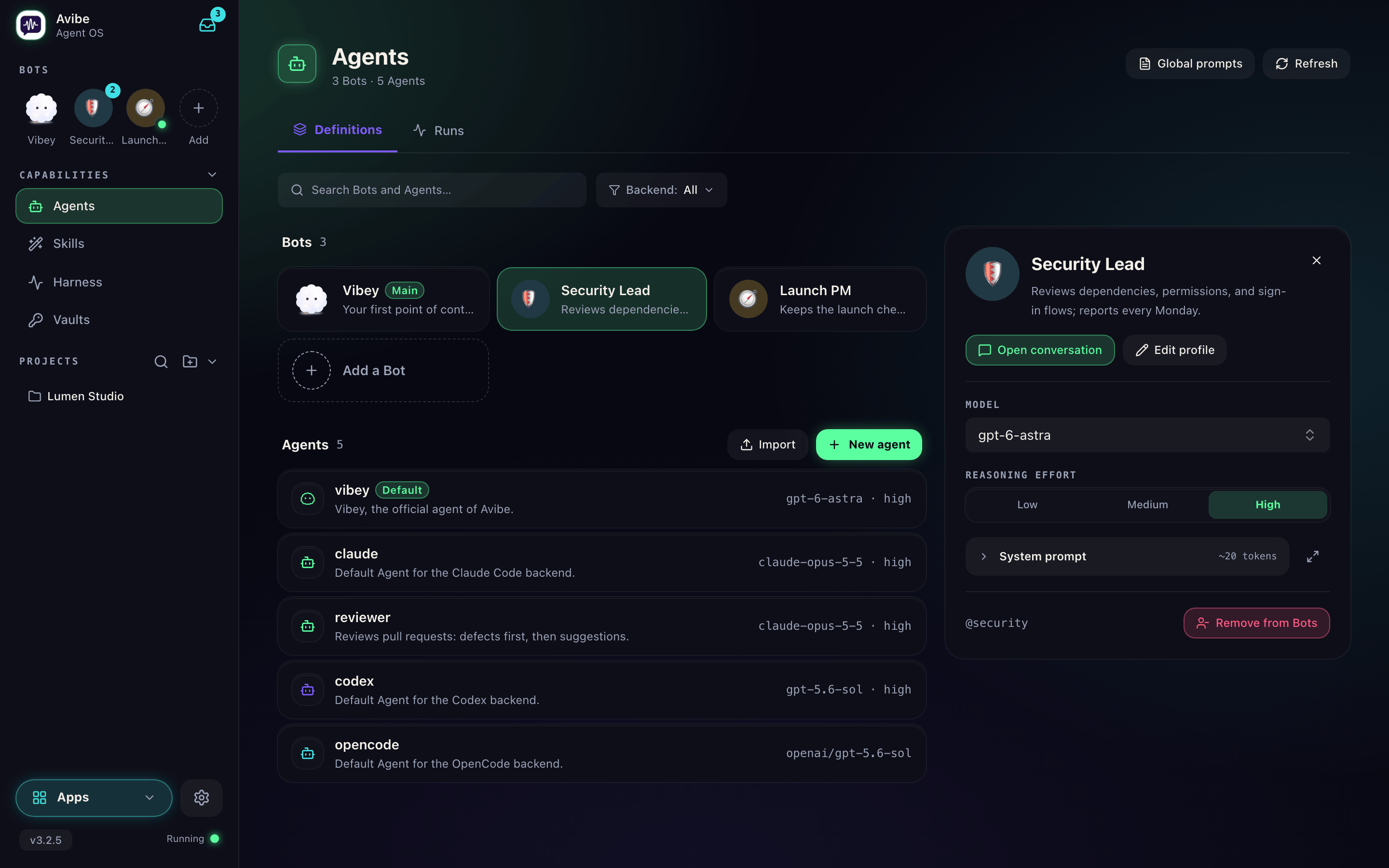
Right-click a Bot in the strip:- Edit profile changes a Bot’s display name, avatar, and role. For the main Bot it changes only the display name.
- Remove from Bots asks first, then takes it off the strip. Its conversation and memory are kept, out of sight, and its Agent returns to the Agents list, where Set as Bot brings them back. The main Bot cannot be removed.
Product UI, sample project data.
From the command line
The sender of a
--bot message hears back the way every vibe agent run sender does (Harness): the Bot reports back, or, if it goes idle without writing back, Avibe sends a read receipt with its last reply; a run that does not complete is reported at once. There is no callback to ask for: --callback is accepted but does nothing. Add --no-reply when the message needs no answer. Change a Bot’s role, model, or instructions with vibe agent update.
The command line is the one place a Bot’s Agent is still reachable as an Agent, so saved Tasks, Watches, and scripts keep working when an Agent becomes a Bot: --agent starts a new Session of that Agent and never writes to the Bot’s conversation. → Commands
Today’s limits
- Bots belong to the instance Owner. Other members of an Organization instance see no Bots and cannot open their conversations.
- You reach Bots from the Workbench (in a browser, on a phone, or in the desktop app), the desktop app’s small window (the main Bot), and
vibe agent run --bot. A chat app’s direct message cannot be bound to a Bot yet. - You can have up to five Bots besides the main Bot.
- Nothing writes
~/.avibe/bots/AGENTS.mdfor you yet; it holds what you or your Bots put there.