
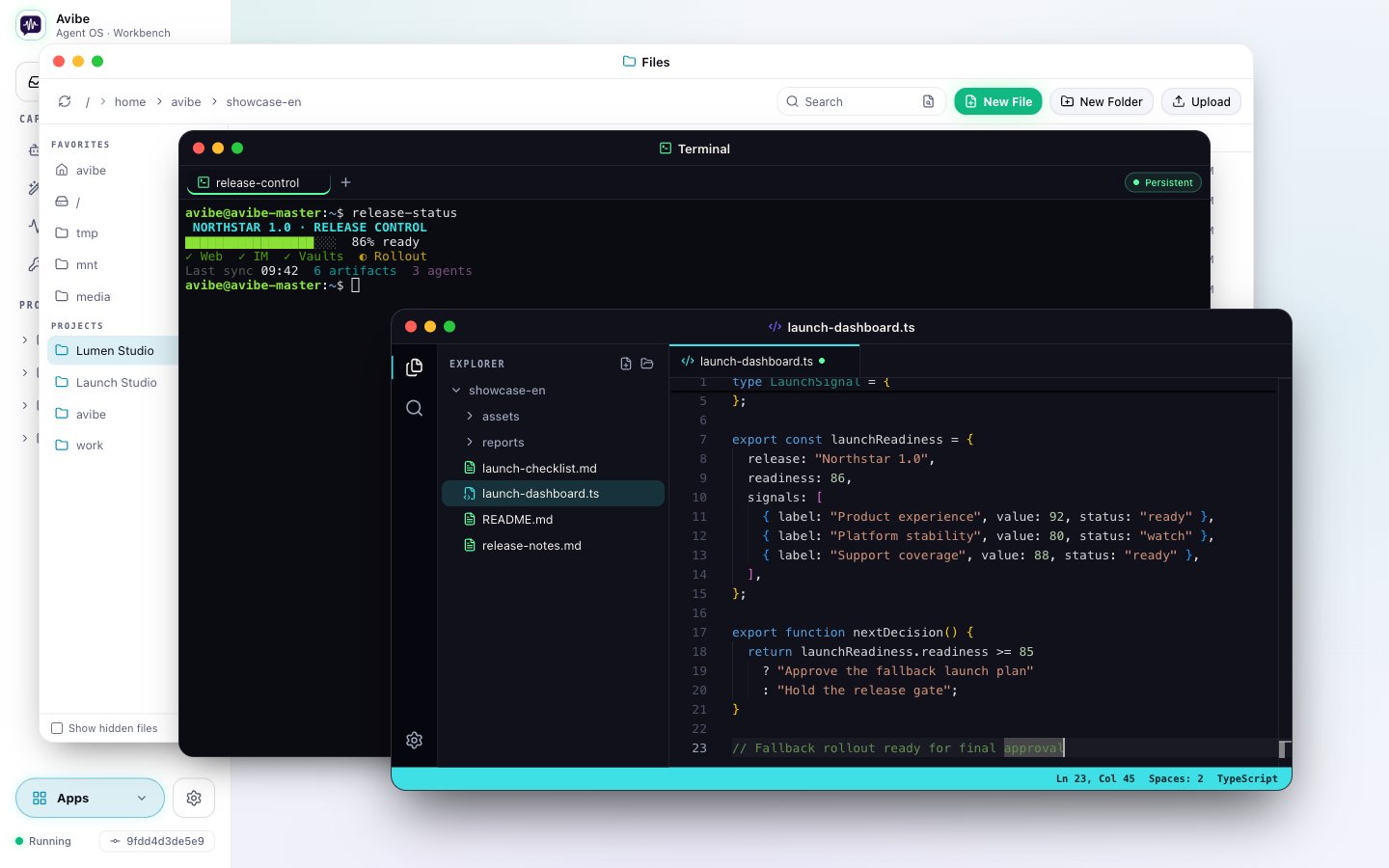
Two layers: installed and docked
Apps live in two overlapping sets:- Installed — everything in the App Library’s Apps list. The built-in apps (Files, Terminal, Editor, and the App Library itself) are always installed; a Show Page becomes installed when you add it.
- Docked — the subset you keep in the Dock, the tile strip along the bottom. Docking an app puts a tile there; undocking removes the tile but leaves the app installed.
The App Library
The App Library is a built-in app that manages everything. Reach it from its own Dock tile, the App Library entry in the sidebar, the empty-Dock shortcut, or by right-clicking the Apps launcher in the bottom-left corner. It has two tabs.Apps
The installed set — built-ins plus every Show Page you’ve added.- Reorder — drag the grip handle at the front of a docked row; the order syncs with the Dock.
- Dock / Undock — toggle whether the app shows in the Dock. The row stays in the list either way.
- Remove App — on a Show-Page row (marked with an AI badge), takes it out of the Apps list. The page itself is untouched, and built-in apps have no Remove.
- Click a row to open the app.
ShowPage
The full inventory — every Agent Session has a Show Page, so this lists them all, not just the ones you’ve installed. Each row shows the page’s status, its visibility (private / public / offline), and its live link.- Add to Apps installs the page as an app (and docks it). Once installed, the same control becomes Remove App.
- Click the title or icon — there’s an open affordance on hover — to open the app in a window.
- Expand a row for its details panel, where you can:
- Rename the page. This renames the session, so the new name shows everywhere.
- Upload an icon — see Icons below.
- Set visibility and manage the share link and its custom suffix.
Windows
Opening an app — a Dock tile, a Library row, ⌘K, or a keyboard shortcut — opens a Mac-style window you can drag, resize, minimize, maximize, and close. A Show Page window shows the live page, so it keeps updating as the agent edits it. The title bar carries these buttons on the right:- Annotate — turn on Show Page annotation and mark what the agent should change.
- Open Chat — jump back to the session that owns the page. The window minimizes so the chat is in front; its Dock tile brings it back. Watch the page change in the Dock thumbnail while you tell the agent what to do next.
- Share — set visibility and manage the share link without leaving the window.
- Open in New Tab — open the page in a full browser tab.
/p/<share-id>.
Keyboard & windows
- ⌥1–⌥9 (Option / Alt) — jump to the Nth app in the Dock.
- ⌥W — close the focused window. Typing surfaces (text inputs, the editor, the terminal) keep ⌥W for character entry, so it only closes a window when your focus is elsewhere.
- ⌘K — search opens apps and every Show Page (installed or not); press Enter to open a result as a window.
- Closing the browser tab while a window is open triggers the browser’s own “leave site?” confirmation, so you don’t drop a window by reflex.
Icons
An app’s icon comes from the page’s own files, resolved in this order:
You can also upload an icon from a page’s details panel in the App Library — it’s saved as a conventional
favicon.<ext> at the workspace root (priority 2). A usable explicit <link rel="icon"> still wins over an uploaded file, because Avibe never edits your HTML. The default Show Page template’s <head> includes a comment spelling these rules out, so the agent building your page knows to give it an icon — dropping a public/favicon.svg is enough.